SimCockpit
Windows app
Connects ETS2 or ATS to your devices.
Loading…
For PC and mobile
Install the Windows app on your gaming PC and SimCockpit on your mobile device.
Connects ETS2 or ATS to your devices.
Loading…
Shows your instruments and controls.
 Android 8.0+ · Google Play
iOS & iPadOS
Coming soon. Until then, use SimCockpit on Android phones and tablets.
In three steps
Your account manages your devices. The Windows app connects to your simulator.
Download SimCockpit for Windows, install it on your gaming PC and sign in to your SimCockpit account — you can create one in the app. The app installs the telemetry plugin into ETS2 and ATS for you; there are no files to copy.
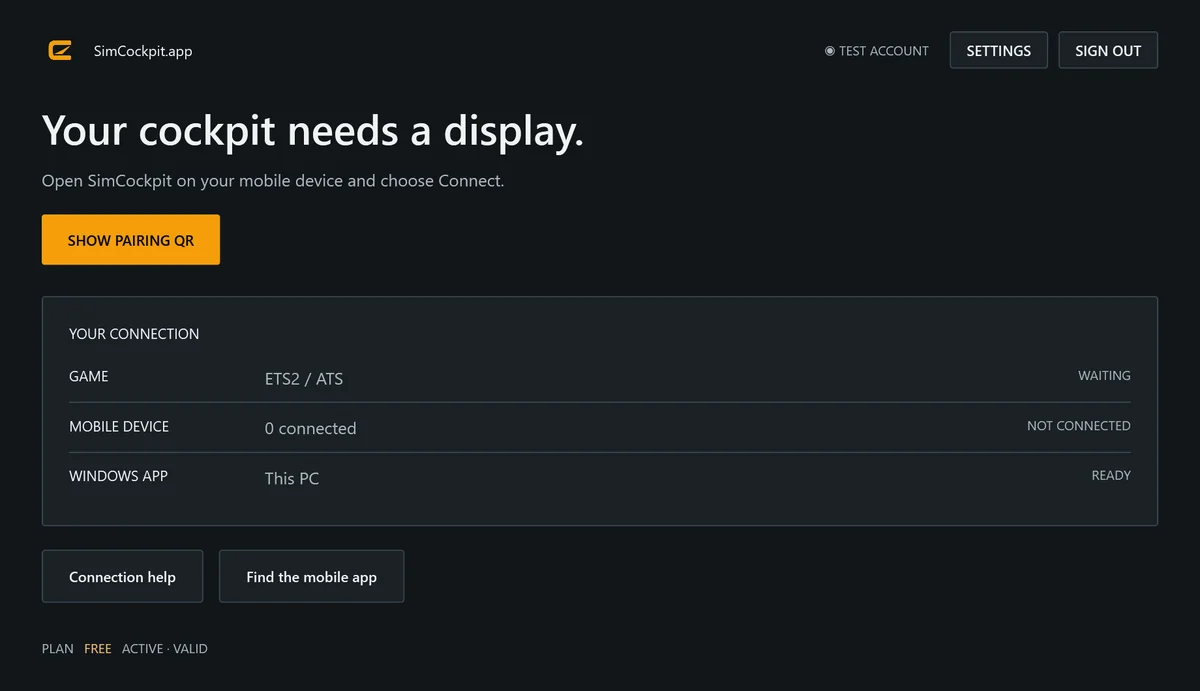
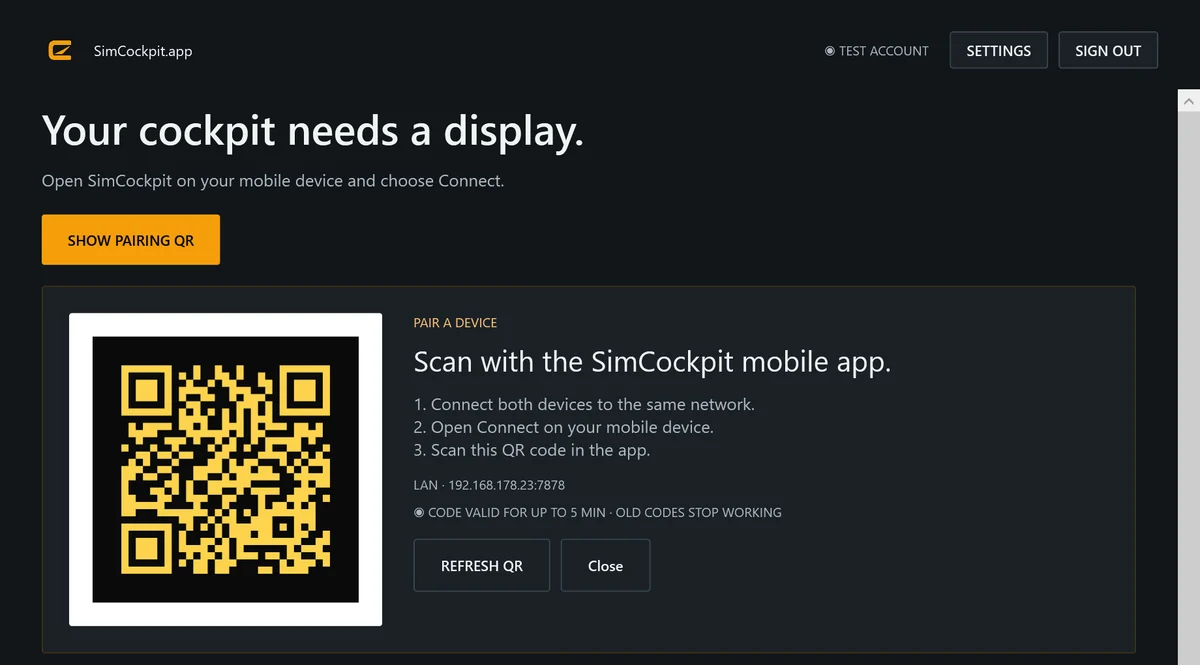
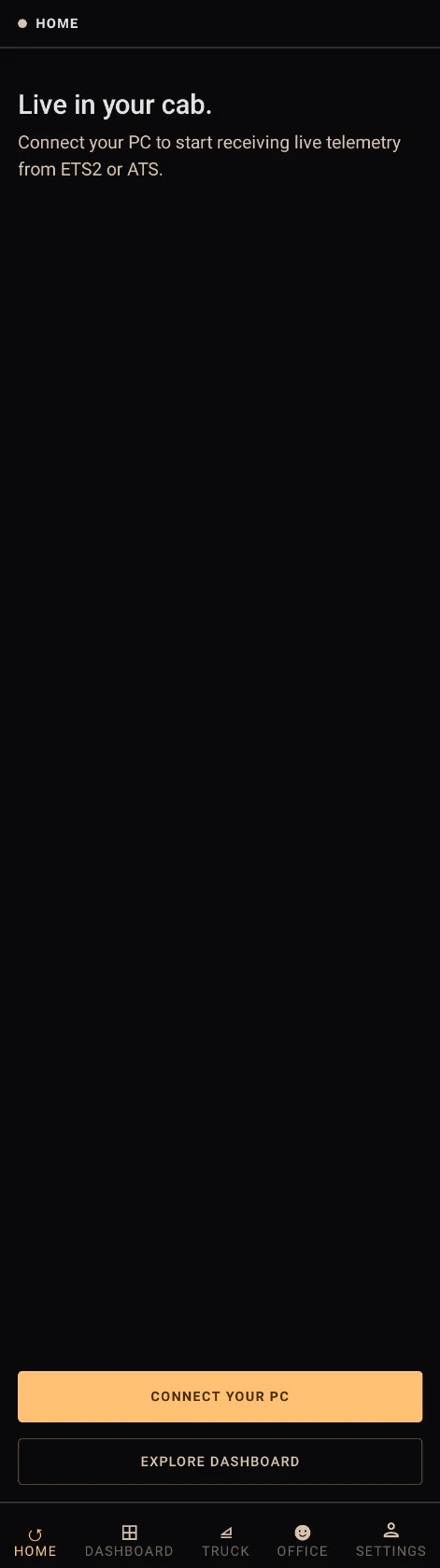
Install SimCockpit from Google Play and sign in with the same account. In the Windows app, click “Show pairing QR”. On your phone or tablet, tap “Connect your PC”, allow camera access and scan the code.

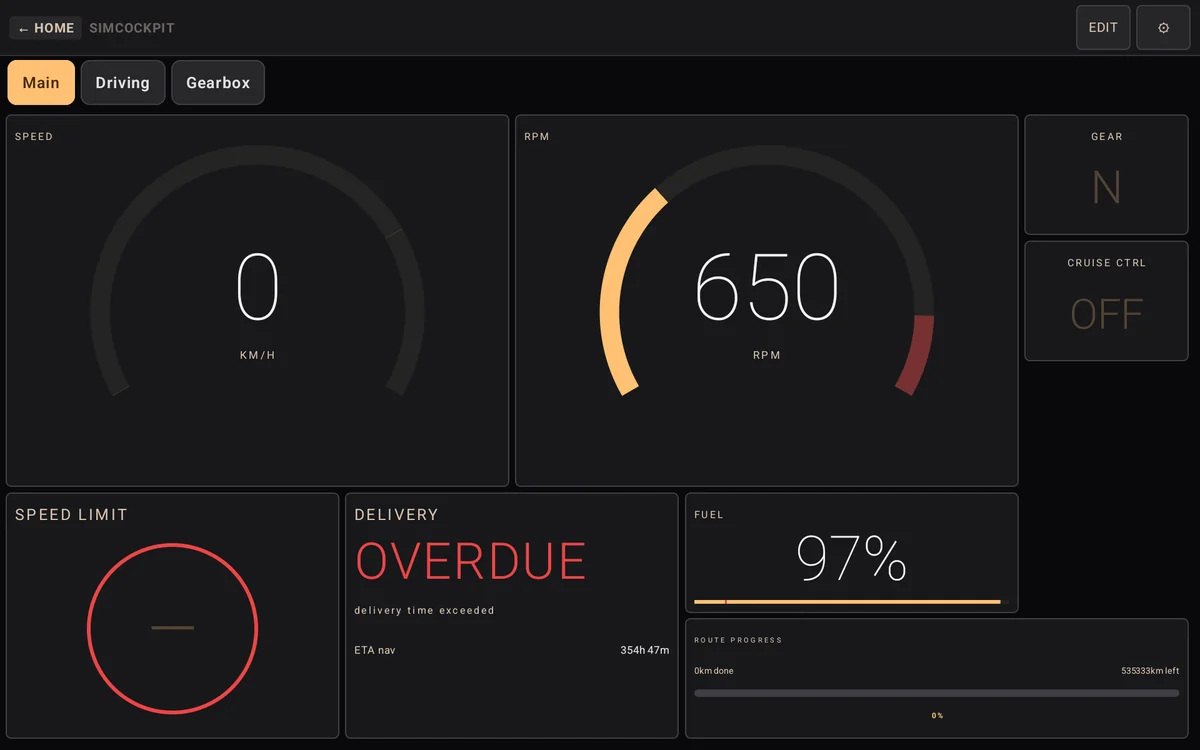
Start ETS2 or ATS and drive. As soon as the game sends data, your gauges come alive. Tap “Edit” on the dashboard to add, move and resize widgets — portrait and landscape each keep their own arrangement.