 SimCockpit
Guide
Use your phone or tablet as an ETS2 & ATS dashboard
Speed, RPM, fuel, the current job — on a screen next to your wheel instead of covering the road. Here is how to set it up in about five minutes.
What you need
A Windows 10/11 PC with Euro Truck Simulator 2 or American Truck Simulator, an Android phone or tablet (Android 8.0 or newer), and both devices on the same Wi-Fi network.
- 01
Install the Windows app
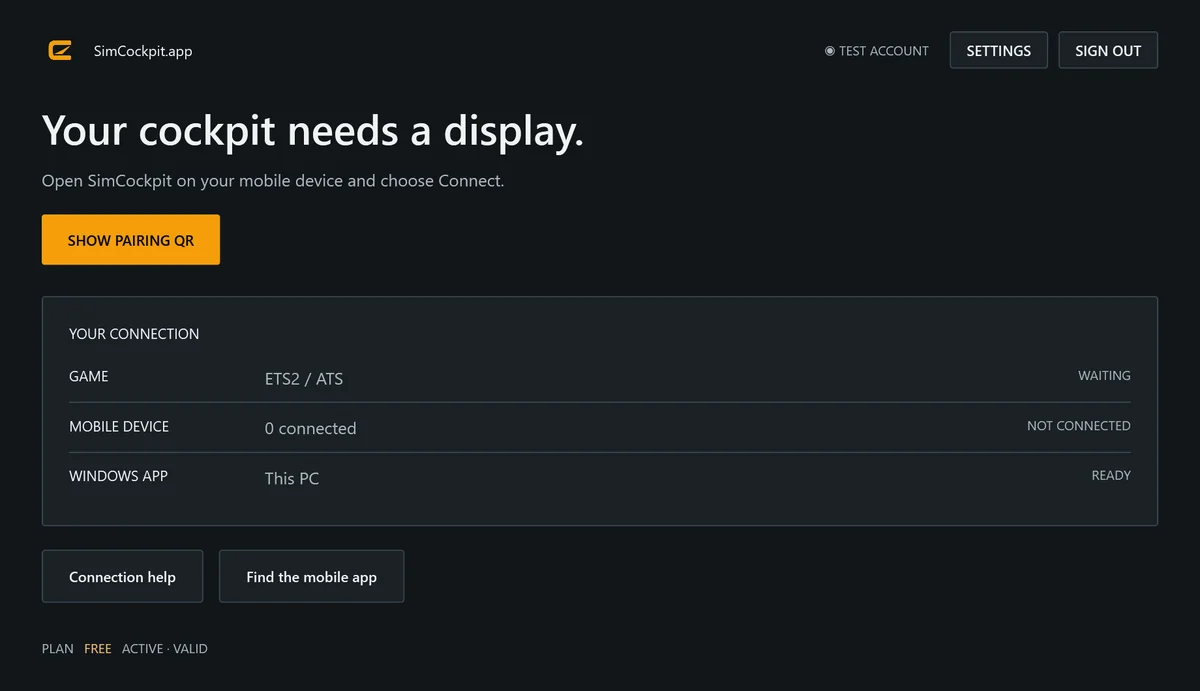
Download SimCockpit for Windows, install it on your gaming PC and sign in to your SimCockpit account — you can create one in the app. The app installs the telemetry plugin into ETS2 and ATS for you; there are no files to copy.
Not working?
- Sign-in needs an internet connection.
- If Windows asks, allow SimCockpit through the firewall — otherwise your phone or tablet cannot reach the PC.
- 02
Install the Android app and pair
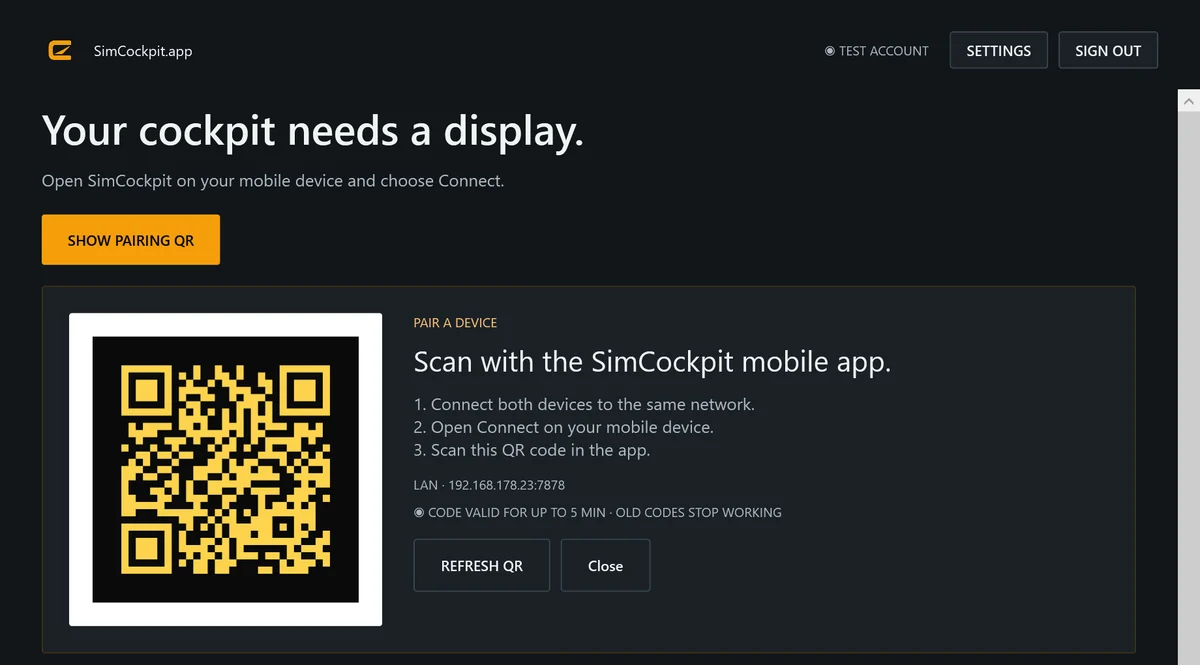
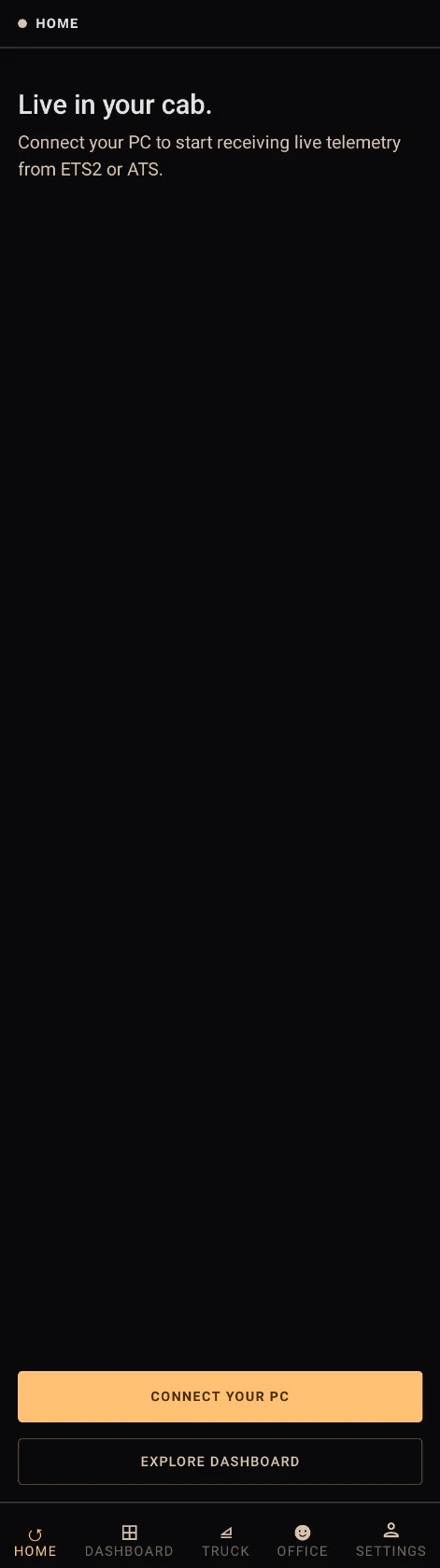
Install SimCockpit from Google Play and sign in with the same account. In the Windows app, click “Show pairing QR”. On your phone or tablet, tap “Connect your PC”, allow camera access and scan the code.
Not working?
- Both devices must be on the same Wi-Fi network. Mobile data is not enough: the live data travels over your local network.
- Guest networks often keep devices apart — use your main network.
- A code is valid for up to five minutes. If it has expired, click “Refresh QR” in the Windows app.
- The free plan pairs one phone or tablet.

- 03
Start driving
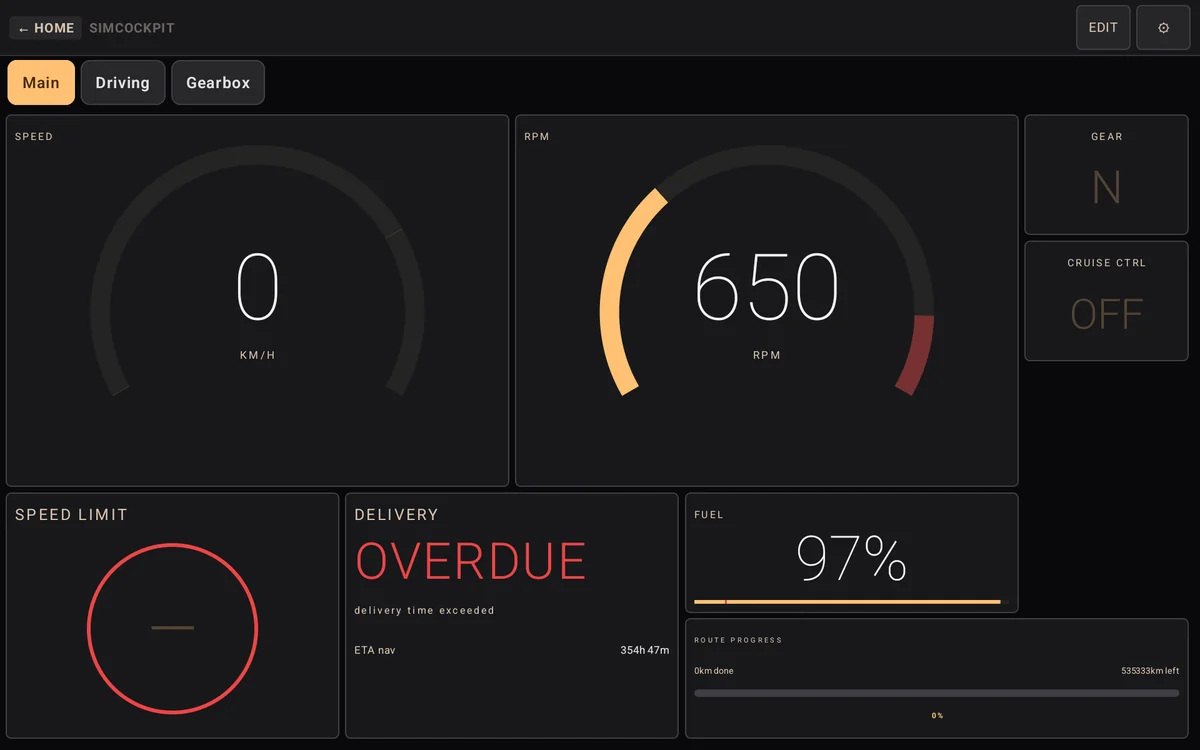
Start ETS2 or ATS and drive. As soon as the game sends data, your gauges come alive. Tap “Edit” on the dashboard to add, move and resize widgets — portrait and landscape each keep their own arrangement.
Not working?
- The gauges only move while the game is running, not in the main menu.
- Turn on “Keep screen on” in the app settings.
- Some trucks do not report their tank size at first; SimCockpit then shows litres until you fill up.
Make it your dashboard
Drag widgets where you want them, resize them and add pages — portrait and landscape each keep their own arrangement. A tablet in landscape makes a full instrument cluster; a phone in portrait fits next to the wheel.
Tips
- Mount the device at eye level, next to the wheel.
- Keep it charging during long hauls.
- Turn on “Keep screen on” in the app settings.
Why not a browser-based telemetry server?
Classic tools run a web server on your PC that you open in a browser and keep up to date by hand. SimCockpit is a native app on both sides: the plugin installs itself, pairing is a QR code, and updates come through Google Play and the Windows app.