 SimCockpit
Guide
Use your tablet as an ETS2 & ATS button box
Eleven button boxes right next to your gauges — lights, cabin, cruise control, transmission and more. Tap the screen and your truck reacts; no extra hardware, no wiring.
The eleven button boxes
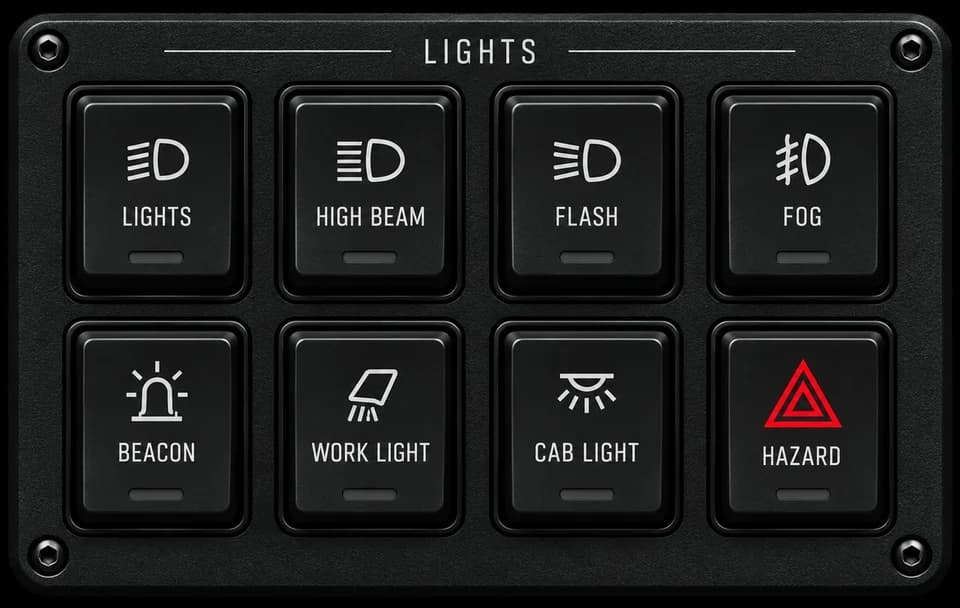
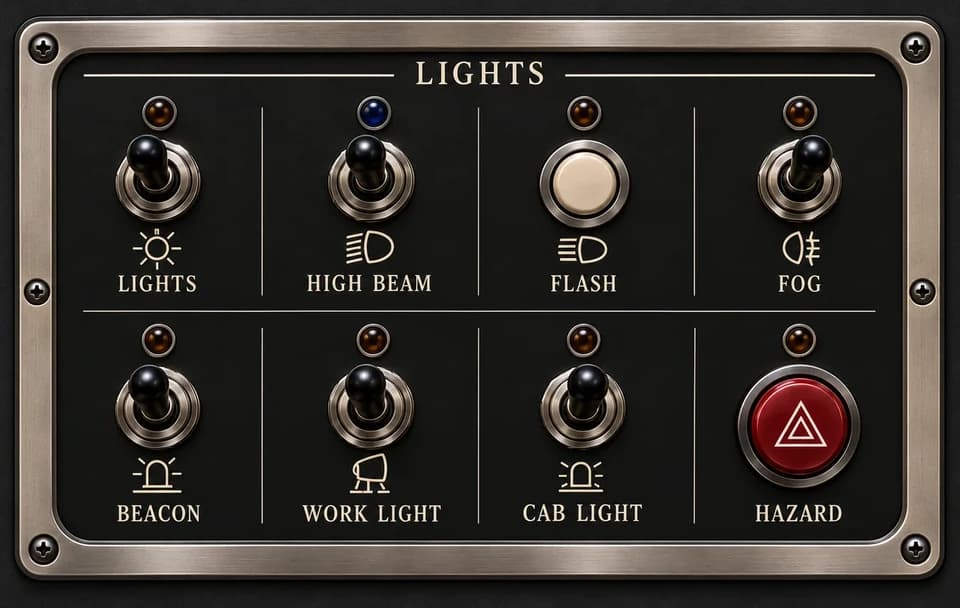
Each box bundles the controls for one job, from the basics — horn, high beam, beacon, hazard lights and blinkers — to camera and radio. Place a box like any gauge; it needs at least three columns, and you can switch it between the Modern and Classic Sterling designs.
- Basics
- Lights
- Cabin
- Vehicle
- Cruise & Retarder
- Transmission
- Suspension
- Trip Computer & Navigation
- Camera & Mirrors
- Radio & Comms
- Game
How a tap reaches the game
The Android app sends the press to SimCockpit for Windows on your PC. There, the SimCockpit input plugin hands it to the game as the function itself — not as a key. That is why your own key bindings, your keyboard layout and your wheel setup make no difference. The Windows app installs the plugin and keeps it up to date.
- 01
Set up the dashboard
Install SimCockpit on Windows and Android and pair the two — the setup page walks you through it with screenshots.
- 02
Add a button box
Tap “Edit”, then “Catalog”, choose the Sterling design and add the boxes you need. Put them where your thumb reaches, next to the gauges you already use.
- 03
Drive and tap
Start ETS2 or ATS and tap. Keep the game window in front: Windows only passes input to the active window.
Good to know
- Only devices you have paired can send a press — the Windows app checks every device before it accepts one.
- If another window is in front, a press is not sent to the game.
- Buttons and gauges share one layout, with separate arrangements for portrait and landscape.